If the position adjustment via your index finger is not working, please check the following steps.
If the issue persists, please feel free to contact our support team.
Granting Access Permissions
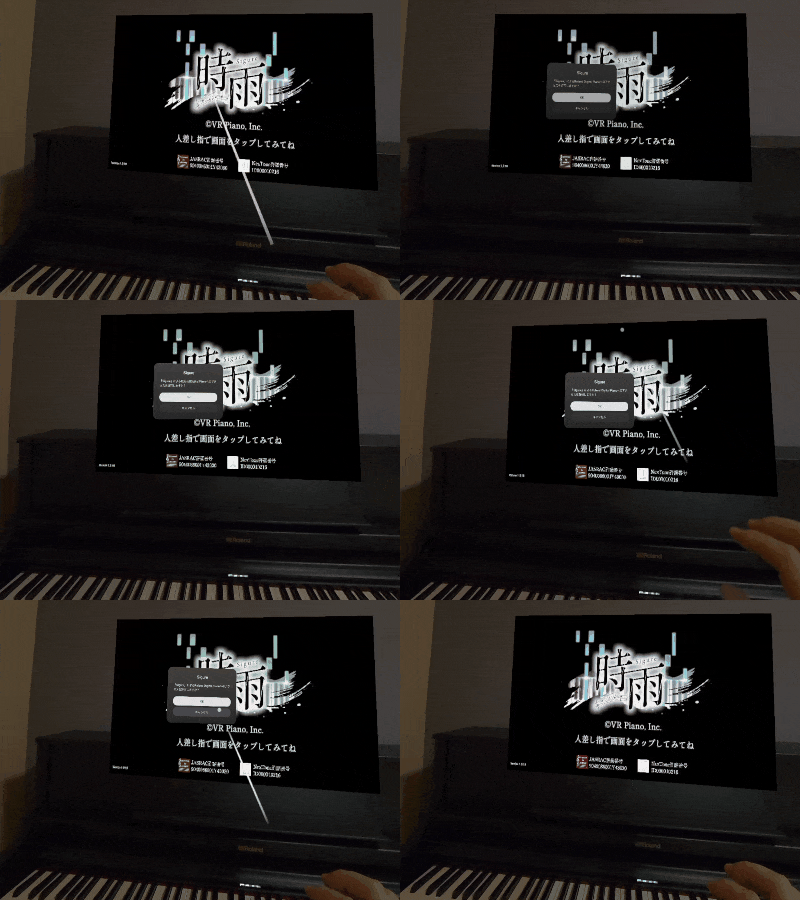
Usually, when you launch the app or plug/unplug the MIDI cable while the app is running, a “Request Access” popup will appear (as shown in the video).
- If this popup does not appear, the MIDI connection is not being recognized.
- Without a MIDI connection, the virtual keyboard will appear in space but will not sync with your digital piano.
Note: Please be careful when choosing your digital piano model.
Standard Position Adjustment Method
If the MIDI connection is successful, you can align the virtual keyboard with your piano:
- Open the menu on your palm and select “Position Adjustment” → “Reset.”
- Tap the leftmost and rightmost white keys with your left and right index fingers, respectively, to align the general position.
- Use the manual adjustment tools for fine-tuning.
Checklist (What to verify if there is no response)
If tapping the keys with your index finger does not work, please try these proven solutions:
- Restart and Reconnect: Restart the app, reconnect the MIDI cable, and ensure you select “OK” when asked “Allow access?”
- Controller Placement: Please ensure your controllers are placed out of the way; otherwise, Meta Quest may not recognize your hands correctly.
- Power Check: Please verify that your digital piano’s power is actually turned ON.
- Cable Compatibility: Switching from a USB Type-B MIDI cable to a traditional 5-pin (round) MIDI IN/OUT cable has resolved issues for some users. If your piano has round terminals, please try this.
- MIDI In/Out Swap: If using a round 5-pin cable, try swapping the “IN” and “OUT” plugs.
Even if a piano has a USB-B port, it may not support MIDI data transmission. If you are purchasing a new digital piano, please confirm it is MIDI-compatible beforehand.
Still having trouble?
If none of the above steps resolve the issue, please contact our support team.
We will check your specific setup and guide you toward a solution.