Play with your computer keyboard Z X C V B N M (lower) / Q W E R T Y U (higher) Black keys: S D G H J and 2 3 5 6 7 ← → to shift octave
Use the − and + buttons above to move to lower or higher notes.
Free to play. Try the virtual piano above.
If you can’t hear anything, turn off silent mode and reload the page.
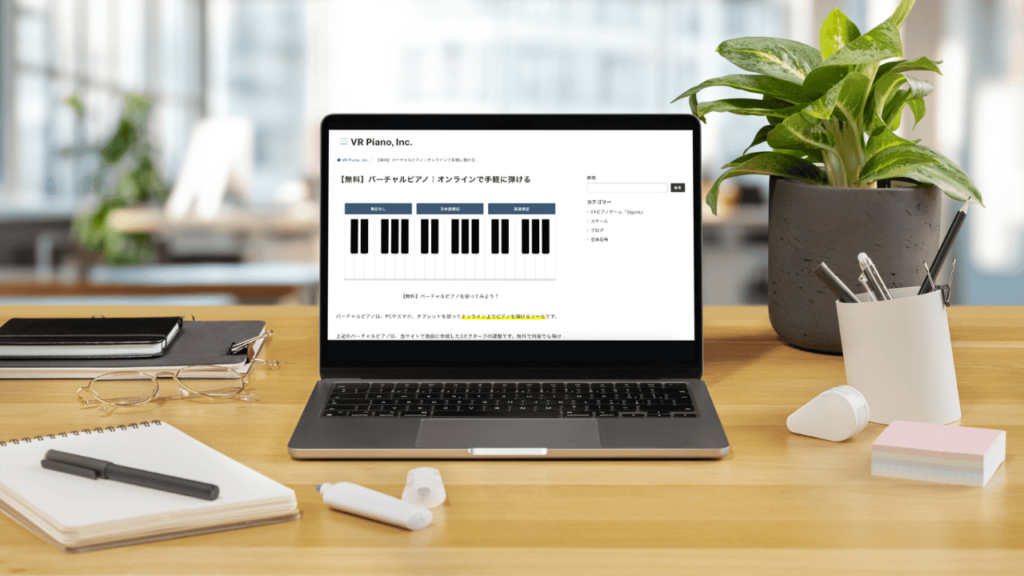
A virtual piano lets you play piano online from a computer, phone or tablet.
The one above is a 5-octave (61-key) keyboard we built ourselves. You can play it with your computer keyboard, record what you play, and share it with a link. It’s free, with no limit on how many times you use it.
2-Octave Version for Phones
If you can't hear anything, turn off silent mode and reload the page.
61 keys can feel a bit tight on a phone screen. We also made a 2-octave version with larger keys. Turn your phone sideways and it's easy to play even with a single finger.
This one is a better fit when you just want to check a note, or hand the phone to a child to try.
The range is 2 octaves starting from middle C (C4). Use the − and + buttons above to shift to lower or higher notes. Note labels can be switched between "Do Re Mi", "ABC" and off.

What Is a Virtual Piano?

A virtual piano is a piano keyboard simulated in a web browser on a computer or phone. It is also called an online piano or a web piano.
You can play it with a mouse, by touch, or with your computer keyboard.
Features of This Virtual Piano
5 octaves, 61 keys
With 61 keys from a low C to a high C, you can play left-hand accompaniment as well as the melody. Pieces like Pachelbel's Canon and Für Elise fit within the range. If the keyboard runs off the screen, scroll sideways or use the − and + buttons.
Play with your computer keyboard
With a mouse you can only play one note at a time. With the computer keyboard you can play close to the speed of a real piano, and the keys light up on screen as you press them.
Note labels you can switch (Do Re Mi / ABC / off)
You can show either "Do Re Mi" or "C D E" on the keys. Once you get used to it, switch the labels off and play by ear instead. Middle C is marked with an orange dot.
Record and share with a link
Press Record and play, and your performance is captured. You can listen back with Play, and the Share button creates a link that plays your performance for anyone who opens it. No account, no file to save.
Sustain on or off
By default the notes ring on as if you were holding the sustain pedal. Turn Sustain off and each note stops the moment you release the key, which is useful when you want to hear one note clearly at a time.
How to Use the Virtual Piano
Mouse, touch and keyboard
- Touch (phones and tablets): tap a key to sound that note. Use more than one finger to play chords.
- Mouse (computers): click a key to sound it. Hold the button down and drag sideways for a glissando.
- Keyboard (computers): Z X C V B N M are the lower white keys and Q W E R T Y U the higher ones. Black keys are S D G H J and 2 3 5 6 7. Use ← → to shift by an octave.
Using both hands lets you play chords freely. The keys light up as you press them, so you can follow along without memorizing the layout.
Checking pitches and chords
- Follow a score and press the matching keys to check the pitches.
- Try out chords and inversions while writing or arranging, and hear how they sound.
Ear training
Pick out melodies and riffs by ear and reproduce them here.
You can also check pitches against your own voice or another instrument.
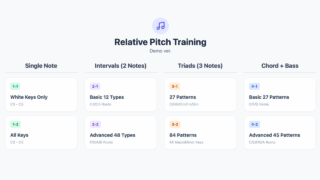
Curious how good your ear actually is? Try measuring it here.
How It Works, and Why It Helps
How it works
The keyboard is drawn with HTML, CSS and JavaScript, and the sound is played through the Web Audio API. All 61 notes are loaded into memory in advance, so there is almost no delay between pressing a key and hearing it.
The sound is not synthesized. Every note comes from a real grand piano, recorded one key at a time.
Why it helps
No instrument needed: play piano at home or anywhere else.
Free and immediate: nothing to install, nothing to sign up for.
Practice and theory: find a note, check an interval or a chord, work through an idea.
Good for beginners: learn where the keys are and start ear training.
For Beginners: Getting the Most Out of It

1. Start with the scale
Press the white keys in order and hear the pitch rise and fall: Do, Re, Mi, Fa, Sol, La, Ti, Do.
Turning on the "Do Re Mi" labels makes this easier to follow.
2. Learn a short phrase
Take a melody you already know and learn it one phrase at a time. It is the quickest way to get a feel for finger movement and pitch together.
3. Work on rhythm
Play the same note in a steady rhythm. Building a sense of tempo and beat matters as much as hitting the right keys.
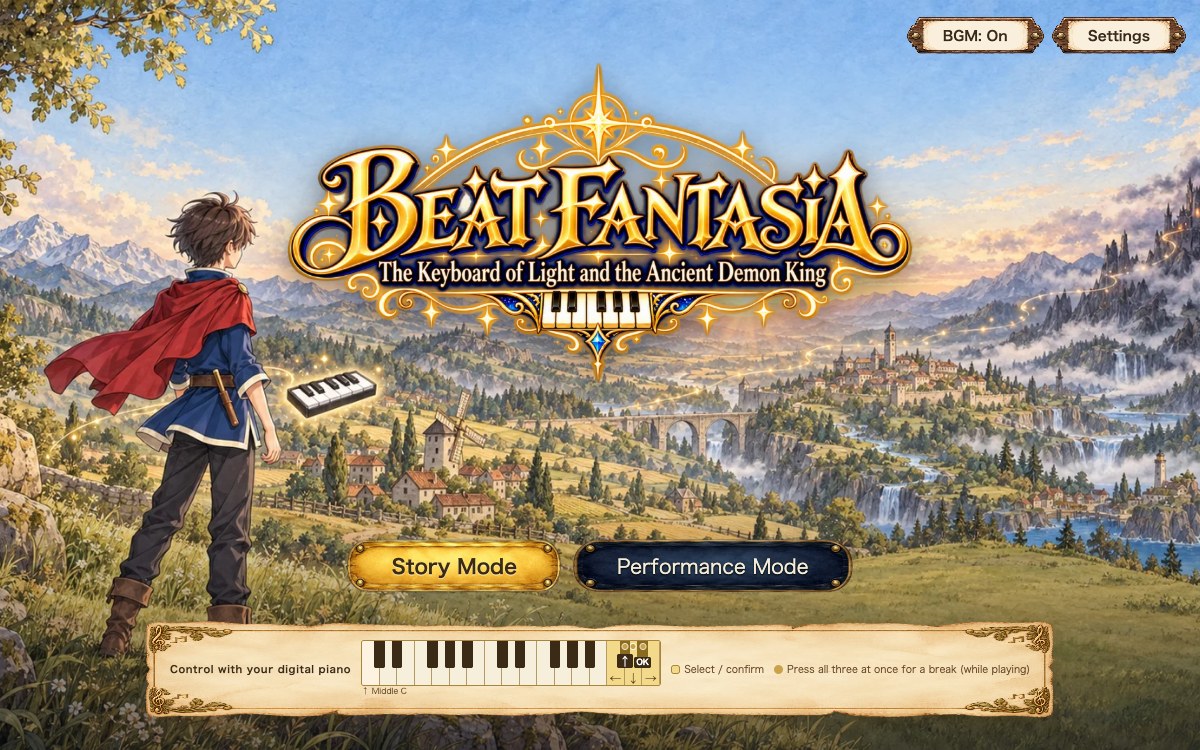
If you'd like a more guided way to practice, try Beat Fantasia, our browser piano RPG. Falling notes show you which key to press and when, and STEP1 is free.
For Advanced Players: Sketching Ideas Online

A quick sketchpad
Catch an idea without opening a DAW.
Testing chord progressions
Try chords and inversions and hear straight away whether they work.
Frequently Asked Questions
-1024x684.png)
Is it free?
Yes. There is nothing to pay for and no account to create.
Does it work on a phone or tablet?
It does, in the browser on a phone, tablet or computer. Turning a phone sideways gives you a much wider keyboard.
Is there a delay between pressing a key and hearing it?
All 61 notes are loaded into memory when the page opens, so normally there is almost none. Right after the page loads there may be a few seconds while the sounds finish loading. The bar under the keyboard shows the progress.
Can I save what I play?
Press Record, then Share, and you get a link. Bookmark it and you can play your performance back any time. Nothing is stored on our server. The performance lives entirely inside the link.
Can I play chords?
Yes. Hold down several keys at once on a computer keyboard, or use more than one finger on a touchscreen.
Summary
A virtual piano is an easy, free way to get your hands on a keyboard, whether you are just starting out or have played for years.
It is especially handy for a bit of ear training, checking a melody, or catching a composition idea while you are already at a screen.
Have a play with the virtual piano on this page and see what you can do with it.
Once the keyboard starts to feel familiar
If playing in a browser starts to feel limiting, it may be time to look for an instrument of your own.
We cover how to choose one without regretting it in our article on the differences between 61, 76 and 88 keys.
